Login
Home
Login
Register
There was a problem loading the comments.
How to Delete/Remove a WordPress theme from the WordPress Dashboard?
Support Portal
»
Knowledgebase
» Viewing Article
Print
20/06/2019 7:15 PM
WordPress
We recommended you to remove unused themes. This is a good practice for protecting your WordPress website from vulnerabilities.
1.
Login to your WordPress admin dashboard.
2.
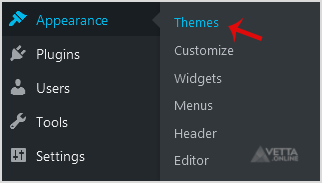
Under the dashboard menu, hover your mouse on
Appearance
and then click on
Themes
.
3.
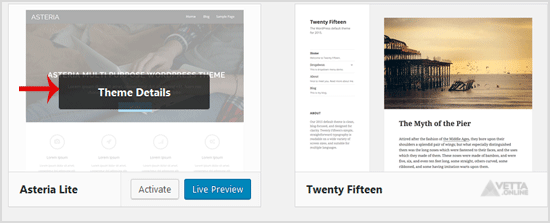
Hover your mouse on a theme that is not active and unused, or you wish to remove that theme. It will show you the option
Theme Details
. Click it.
4.
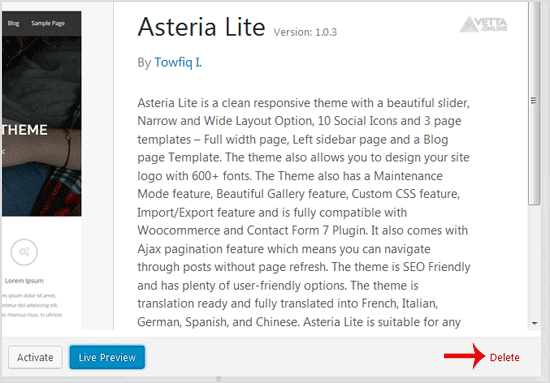
A simple window will open. You can see the
Delete
option at the bottom area on the right side of the window. Click it!
5.
A confirmation window will open. Click
OK
to remove your theme.
The theme is successfully removed!
Share via
Did you find this article useful?
Related Articles
How to remove a category in WordPress?
How to Deactivate and Delete a Plugin in WordPress?
How to Create or Delete a Directory Using the FileZilla FTP Client?
Categories
7
Android
4
Backup/Restore
2
Backup/Restore
4
Backup/Restore
14
Blog
16
Blog
2
CMS/Portal
43
CMS/Portal
8
Databases (DA)
4
Domain Management
8
Domain Management (DA)
6
Email (DA)
6
Email (SiteWorx)
3
FTP
4
FTP
5
FileZilla Client
13
Forum
15
Forum
7
Mail Filters & SPAM
6
Mozilla Thunderbird
3
Others (SiteWorx)
4
Security (SiteWorx)
8
SiteWorx Basic
2
Softaculous (SiteWorx)
6
SolusVM Basic
13
SolusVM VPS Management
12
WHM (For Resellers)
5
WHM (Root)
4
iOS/Apple
6
DNS - Nameservers
11
Databases
1
DirectAdmin
10
Domain Management
5
Email
4
FTP
6
Installing a Control Panel
8
Mail Filters & SPAM
3
Others
5
SSL (cPanel)
10
Security
2
Softaculous
1
WHM
17
WordPress
24
cPanel - Control Panel
© Vetta Online